NDIP - Normalization
In this page, users can perform Normalization, by using the current Reduction Plan and the additional parameters defined here.
- Overall, users can:
create Normalization parameters in a Reduction Plan
edit the Normalization parameters of a Reduction plan from the ReductionPlan object or file (memory or disk)
run the Normalization data reduction process
launch an external tool for analyzing the data further
Fields
Below are the fields for normalization
Field |
Type |
Value Origin |
Additional validation |
Mandatory |
|---|---|---|---|---|
Projection X3 |
List of 3 Float |
default projections[]: [[1,0,0],[0,1,0],[0,0,1]] |
non co-linear |
yes |
Extern (Min, Max) X3 |
(Float, Float) |
default: (-6,6) X3 |
Min < Max |
yes |
Number of Bins X3 |
Integer |
default bins[]: [201,201,201] |
bins[i]>=1, bins[0]*bins[1]*bins[2] <= 10^9 |
yes |
Operations |
String |
default: None, predefined choices(2) |
no |
|
Crystal System |
String |
predefined choices from operations |
conditionally yes |
|
Group |
String |
predefined choices from crystal system |
conditionally yes |
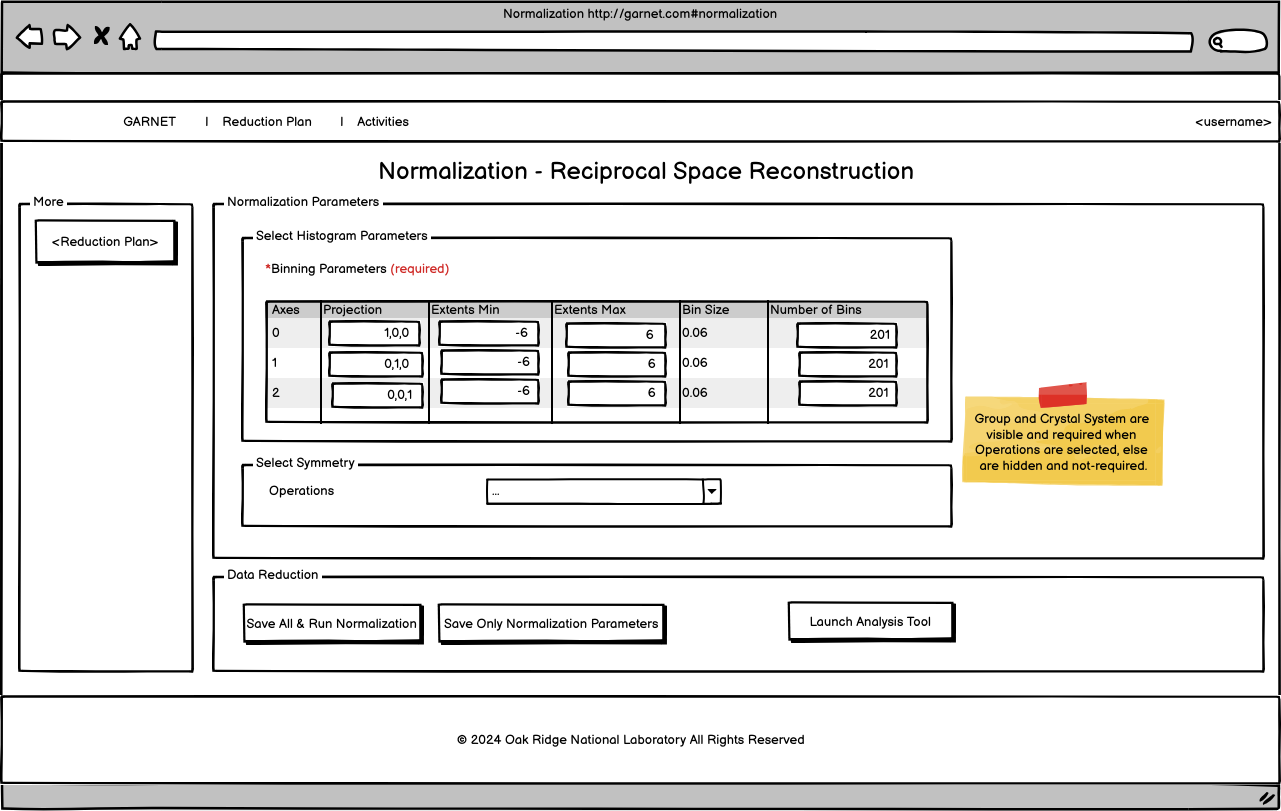
The Crystal System and Group fields are hidden and empty, when Operations value is None. If the Operations Value is Space Group or Point Group, both become mandatory fields.
- The Operations options are:
None
Space Group
Point Group
They can be retrieved from the configuration in the backend.
The Crystal System and Group options are retrieved from Mantid’s SpaceGroup Factory and PointGroupFactory with some data processing in the backend.
Field Interactions
When the user selects an Operations value (Space Group or Point Group), besides showing/hidding the above fields, data are retrieved for Crystal System dropdown choices depending on the Operations selected value.
When the user selects a Crystal System value, data are retrieved for Group dropdown choices depending on the Crystal System selected value.
- When the user updates the extends min[i] or extends max[i] or number of bins[i], the bins size[i] is updated following this formula:
bins_size[i] = (max[i]- min[i])/(bins[i]-1)
The bin size field is not editable by the user.
When the user selects the Operations value to None, the Crystal System and Group field values are set to None, too.
Validation
Regarding validation, same rules about styling, form submission,success/error mesages, client side vs. server side validation and messages apply here, as the Reduction Plan.
- Client side validation can include:
required fields
field types
extends min <max
number of bins min value and collective max value
projection comma-separated float number format
Additionally, when the user does not have a Reduction Plan, yet, and they land on this page, an error message (”Please create a Reduction Plan first”) below the submission buttons should appear. The buttons’ functionalities (Save All & Run Normalization, Save Only Normalization Parameters) are deactivated as the rest client side validations. The menu item on the left should be replaced to “Create Reduction Plan”. Launch tool button is visible and active anytime.
- Server side validation can include:
projection non colinear
filepath/directory for normalization data
normalization exception
Submission
Save All & Run Normalization button: When the user clicks the button, garnet runs the normalization process and produces results. Both ReductionPlan object and file are updated with the normalization parameters and Results filepaths (4-8 files depending on the existance/usage of the Background field). The Results block is updated with the generated files and their root directory. A success message (n=5s) is displayed: “Reduction Plan is updated with the Normalization Parameters and Results.”
Save Only Normalization Parameters button: When the user clicks the button, the normalization parameters (histogram parameters, symmetry and results=[]) are saved in the ReductionPlan object and corresponding file. A success message (n=5s) is displayed: “Reduction Plan is updated with the Normalization Parameters.” below the button. The Results block becomes empty.
Launch Analysis tool button. When the user clicks this button, a new page appears with the analysis tool. This is a new tool. Requirement for this: TBD.
If the user runs normalization and there is an existing directory/filenames, a warning message appears asking the user: “The current files in the directory <directory> will be overwritten. Do you want to continue?” (option to not show this message again). If the user selects to continue the files will be overwritten, else nothing will happen.
Create Normalization Parameters
The first time the user lands in the page with a Reduction Plan created/loaded in memory and no normalization parameters exist in the plan, default parameters are displayed as shown here: Wireframe Normalization Landing.
Edit Normalization Parameters
If the existing Reduction Plan contains valid Normalization parameters, then they are shown in the web form over the default values. They are accesed from the ReductionPlan object first and then from the Reduction Plan file. The Results block with the directory and files should appear, too (Wireframe Normalization Edit).

- If the fields are not valid:
Invalid parameter values. An information message is displayed to the user: “The normalization parameters have some mistakes in the Reduction Plan. Please correct the issue and save it.”. The parameters are populated in the form with their validation messages/colors.
Missing parameter fields (keys). An error message is displayed to the user: “The normalization parameters were not loaded. Please fill them in.” . The default normalization parameters values should appear in this case.
If the Results exist, they should be populated, too.